ChatGPT can now read your Chrome tabs. What it means for everyday browsing
OpenAI's Chrome update lets ChatGPT read open tabs and, in Work mode, act on them. Here is what changed, and where a guide that shows you where to click fits.
Key points
- Since 15 October 2026, ChatGPT's Chrome extension can read the tabs you let it use, and its Work mode can fill in forms and send messages.
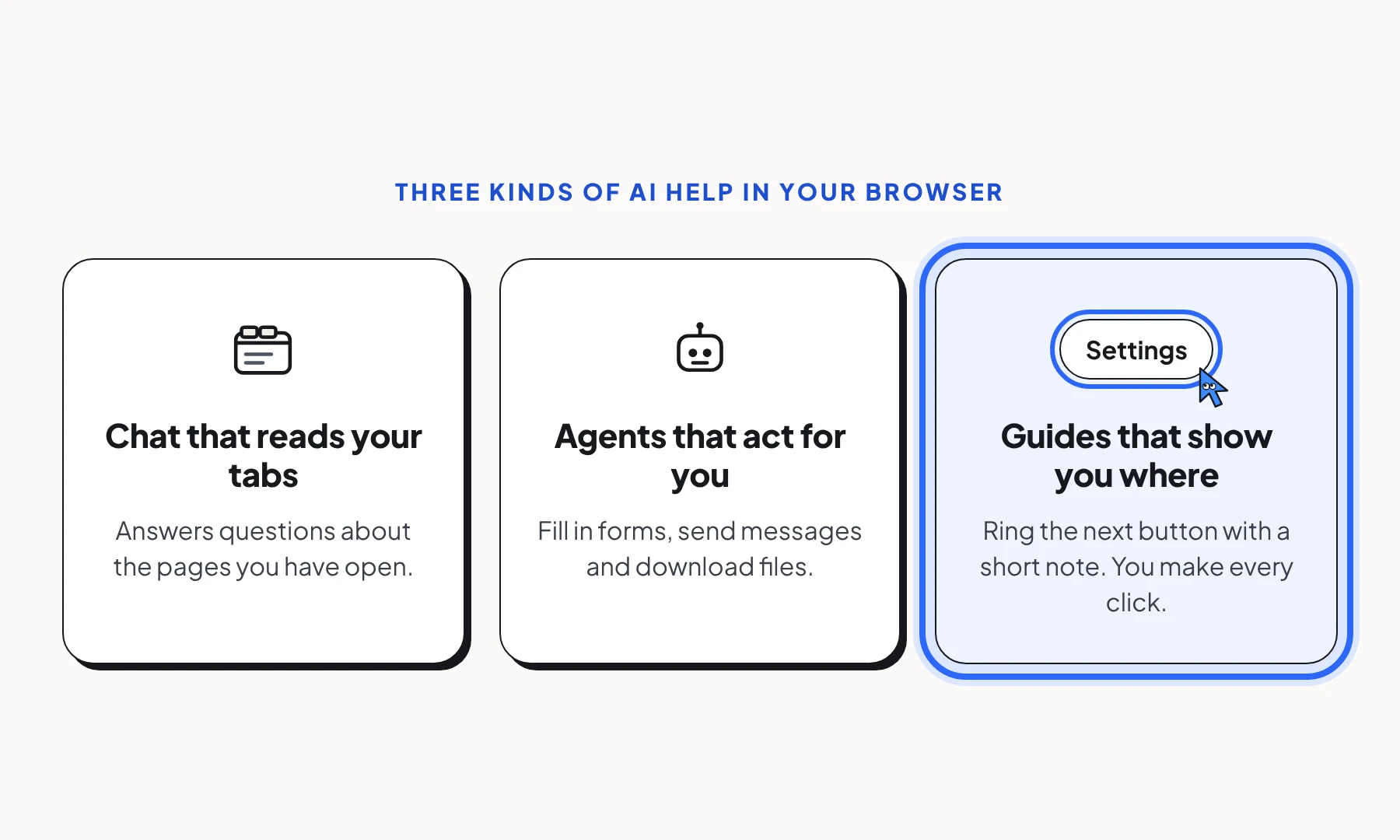
- AI help in the browser now comes in three kinds: chat that reads pages, agents that act for you, and guides that show you where to click.
- Which one fits depends on a simple question: do you want it done for you, or do you want to do it yourself, without getting lost?
On 15 October 2026, OpenAI updated ChatGPT’s Chrome extension. ChatGPT can now read the tabs you have open and, in its Work mode, take actions in them. It’s a clear sign of where AI help is going: into the browser, next to the websites people already use.
What changed
According to reporting by 9to5Google, TechSpot and The Verge:
- It reads your tabs. Once you connect Chrome to ChatGPT, it can use your open tabs as context to answer questions, for example to compare products on several websites. You can limit it to specific tabs.
- It sits in a sidebar. ChatGPT now opens in a panel next to the page, with your chat history in reach.
- It can act for you. In Work mode, ChatGPT can fill in forms, send messages and download files in your tabs. Reports say you can review a form before it is sent.
The update follows OpenAI’s decision to retire its Atlas browser in August 2026 and point people to the Chrome extension instead.
Three kinds of AI help in your browser
AI help in the browser now comes in three kinds, and they do different jobs.
- Chat that reads your pages. You ask a question; it reads what’s open and answers. Good for comparing, summarising and finding information.
- Agents that act for you. You give it a task; it fills in the form or sends the message. Good when you’re happy to hand the task over.
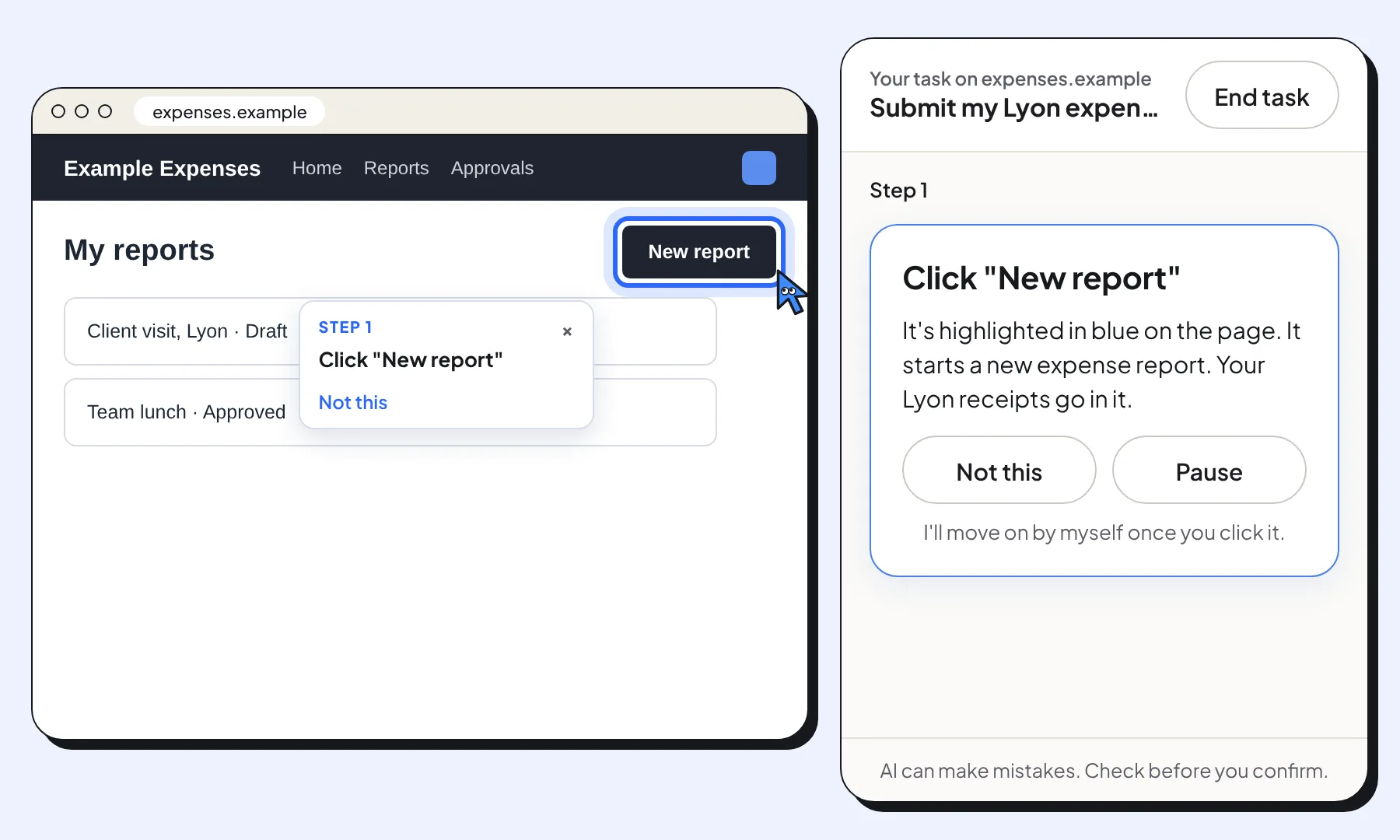
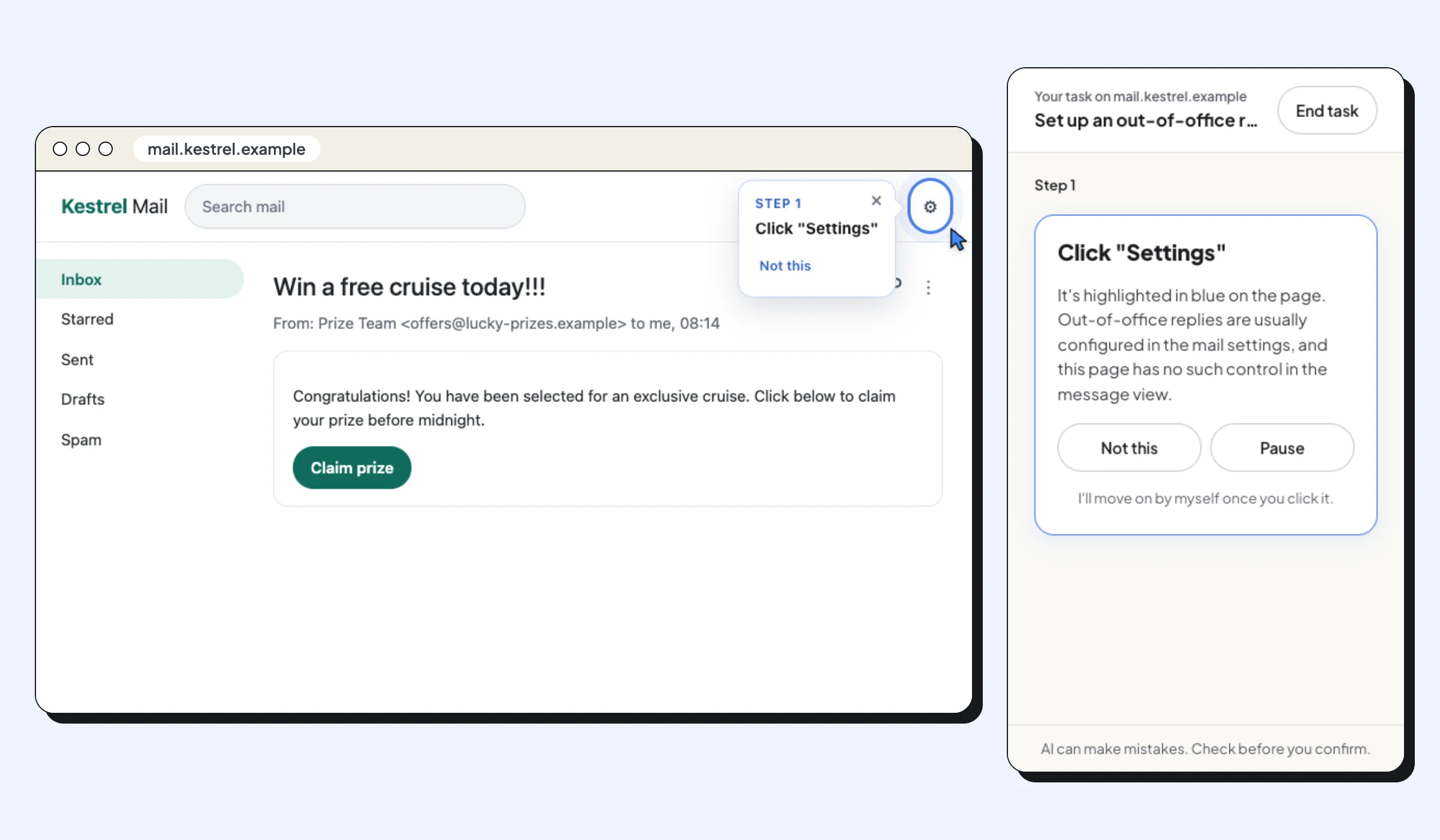
- Guides that show you where to click. You say what you want to do; it highlights the next button on the page, with a short instruction. You make every click. This is what Clickable does.
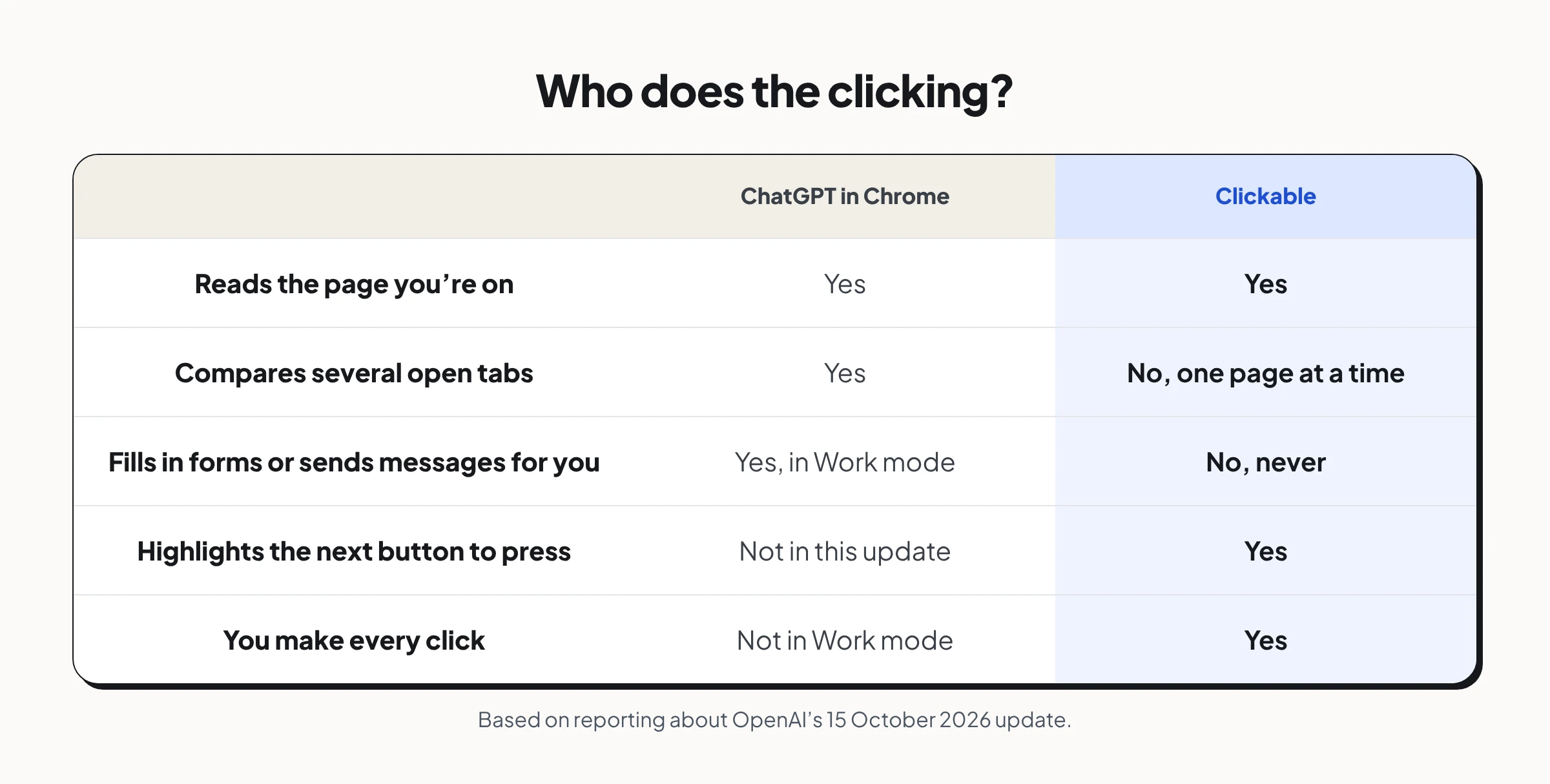
The biggest difference is who presses the buttons.
When you want to do it yourself
Handing a task to an agent is convenient when you trust it with the page and your details. Many tasks are ones people want to do themselves: a bank transfer, a tax form, a doctor’s appointment, a setting they’ll need to change again next year.
On those pages, a guide fits better than an agent:
- You stay in control. Nothing is clicked, typed or submitted for you.
- Your details stay with you. Clickable never sends what you type or your passwords, and it pauses on sign-in pages so you sign in yourself.
- You learn the website. Next time, you know where the button is.
- It asks when it isn’t sure. If two buttons could be right, Clickable asks you instead of guessing.
What it means for websites
Every major AI company is now building help into the browser. People will increasingly expect help to be there, on the page, at the moment they’re stuck. For anyone who runs a website or picks software for a team, the question shifts from “can people find our site?” to “can people get through it?”
AI can do more and more of the work for you. Sometimes, though, you don’t want it to take over. You want to understand what you’re doing, know where to go and stay in control.
That’s the difference Clickable is built to make: you say what you want to do, and Clicky shows you the next step on any website.
About Clickable
Clickable is a free Chrome extension that shows people where to click on any website, one step at a time. You ask in your own words and Clicky highlights the next thing to click. You make every click yourself: Clickable never clicks, types or pays for you.
Questions about this news
Is Clickable the same as ChatGPT in Chrome?
No. ChatGPT in Chrome answers questions about your open tabs and, in Work mode, can act on them. Clickable shows you the next thing to click on the page you're on, and you make every click.
Does Clickable read my other tabs?
No. It reads only the page you ask about, when you ask: its buttons, labels and headings and a short excerpt of its text. What you type and your passwords are never sent.
Can I use both?
Yes. They do different jobs. Use a chat assistant to compare or summarise pages, and Clickable when you want to find your own way through a website.