Google ChromeTime needed: 1 minute
How do I clear cookies, cache and history in Chrome?
Updated
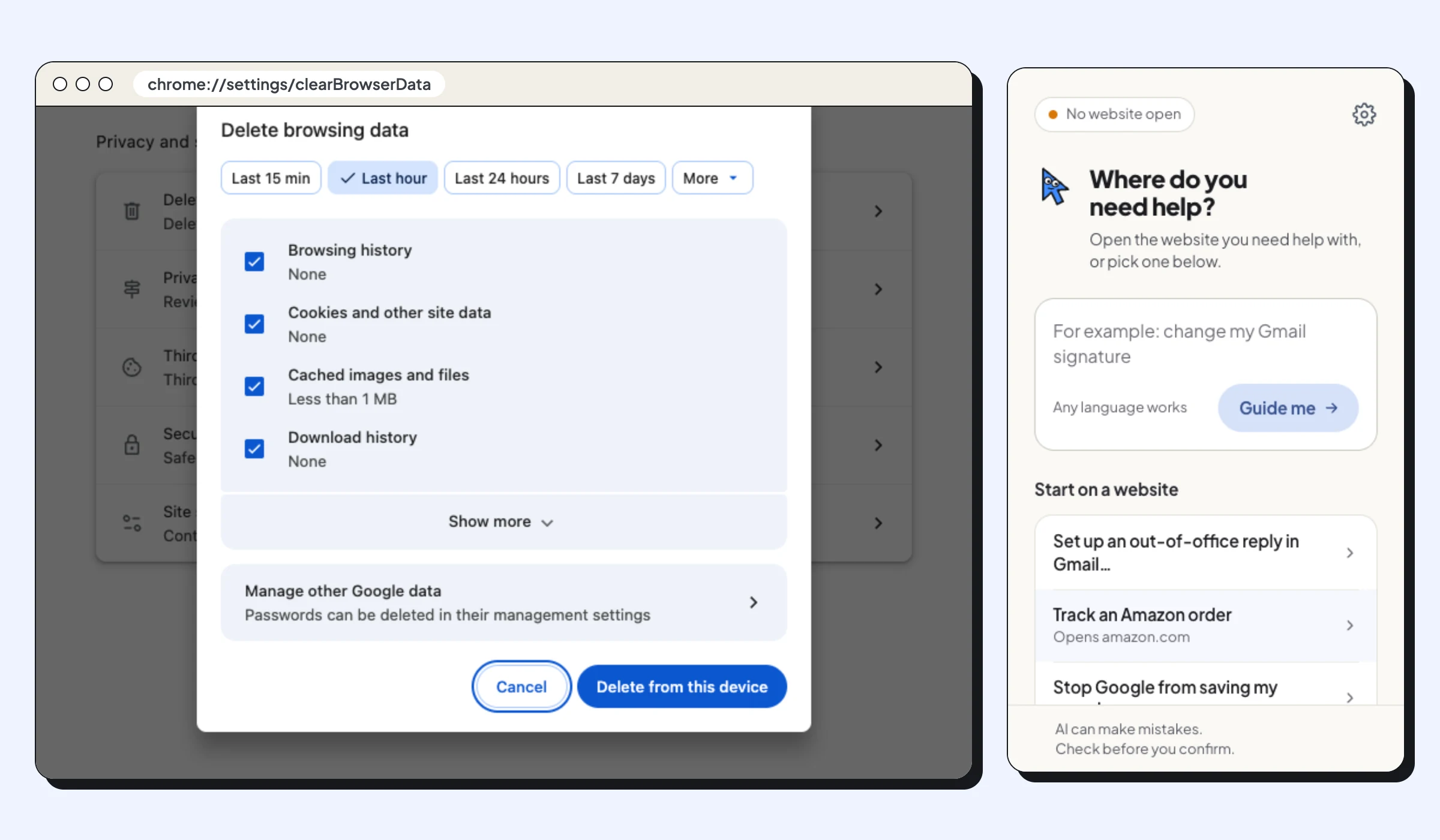
Open Delete browsing data in Chrome's settings, pick a time range, tick what to remove and press Delete from this device. Takes under a minute.
Chrome keeps three kinds of data from the websites you visit: your browsing history, cookies and the cache. You can delete all of it, or only one kind, from a single window in Chrome’s settings. These steps are for Chrome on a computer. On a phone, the menu is in a different place: see Google’s help page.
Clearing this data is a common fix when a website won’t load properly or keeps showing old information, and a way to remove traces of what you looked at on a shared computer.
What you need
- Google Chrome on a computer (Windows, Mac, Linux or Chromebook)
- Passwords for the websites you use, because deleting cookies signs you out of them
Steps
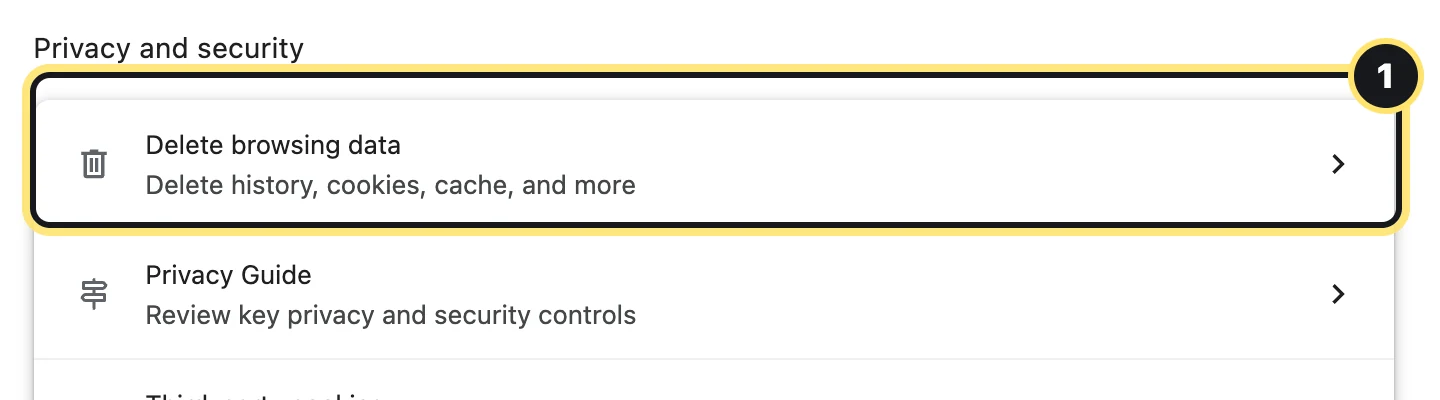
Open Delete browsing data
In Chrome, press Ctrl+Shift+Delete (on a Mac, Cmd+Shift+Delete). Or click the three dots at the top right, choose Settings, then Privacy and security, then Delete browsing data.
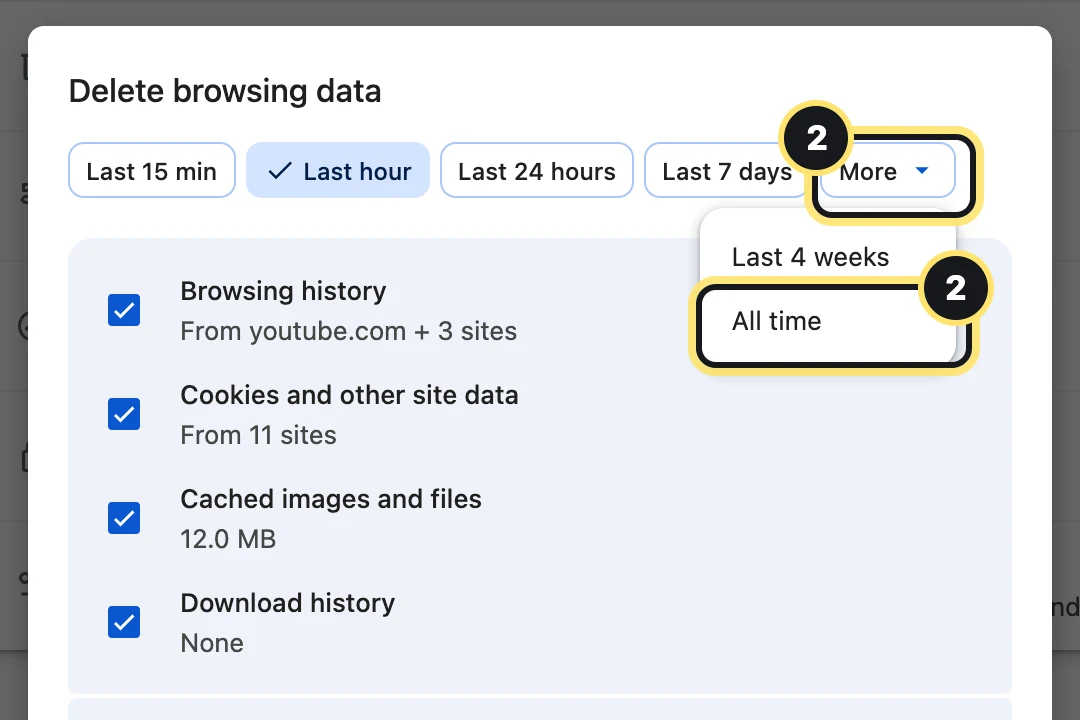
Choose how far back to delete
At the top of the window, pick a time range. For everything, click More, then All time. If one website stopped working today, Last hour or Last 24 hours is often enough.
Tick what you want to remove
Browsing history is the list of pages you visited. Cookies and other site data keep you signed in and remember your choices on websites. Cached images and files are copies of pages that make them load faster. Untick anything you want to keep. Show more adds Autofill form data, Site settings and Hosted app data, which are not ticked by default.
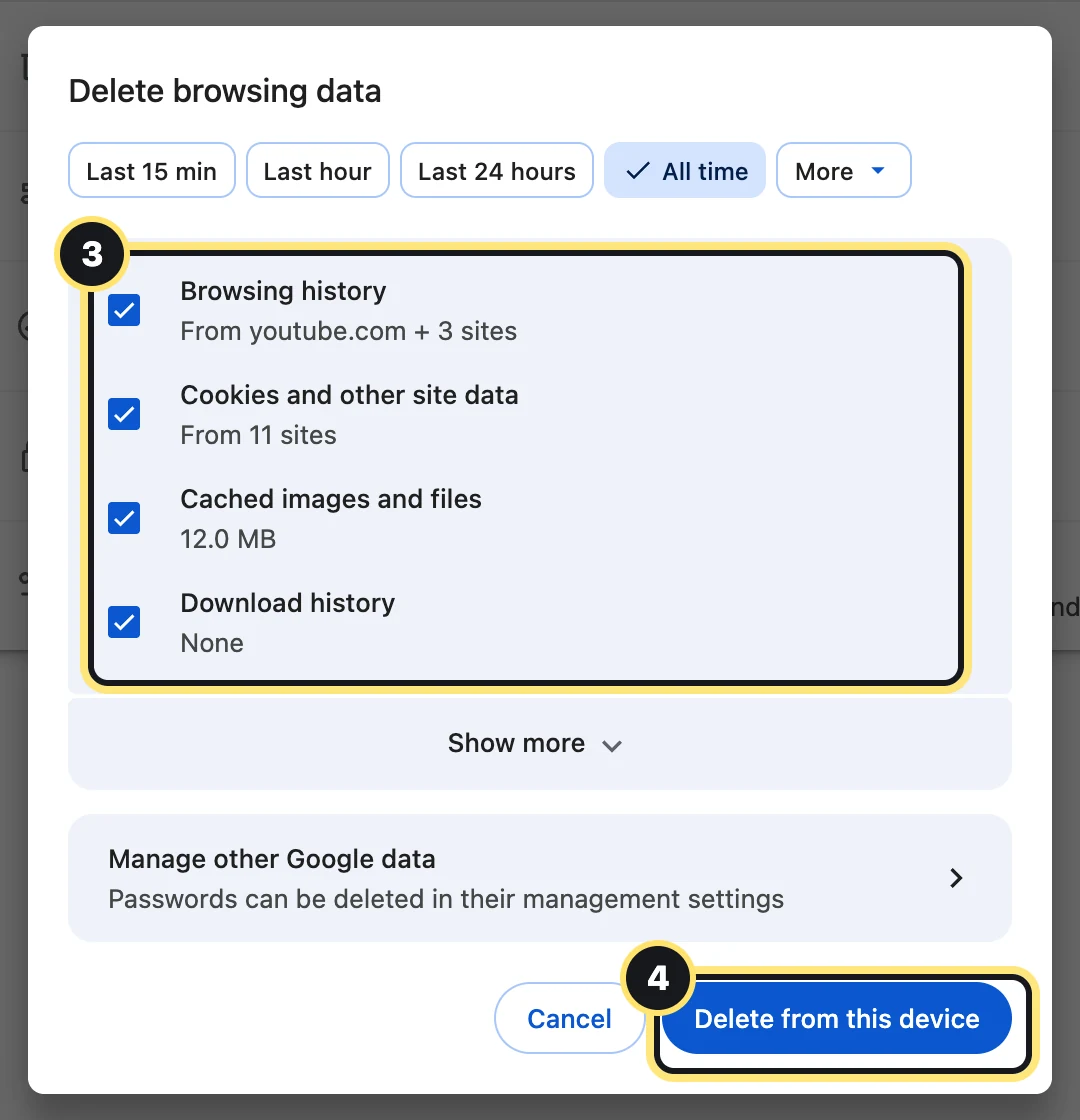
Press Delete from this device
Chrome deletes the data straight away and closes the window. Websites will ask you to sign in again and may show their cookie banner again.
Official website: Google Chrome