Google My ActivityTime needed: 3 minutes
How do I delete my Google search history?
Updated
Clearing Chrome doesn't remove searches saved in your Google Account. Delete them on myactivity.google.com, all at once or one by one.
Deleting your history in Chrome only clears what’s stored on your computer. If you were signed in to Google, your searches are also saved in your Google Account, where they show up on every device you use. To remove them, use Google’s My Activity page. Google is updating these pages, so a label may be slightly different on your screen.
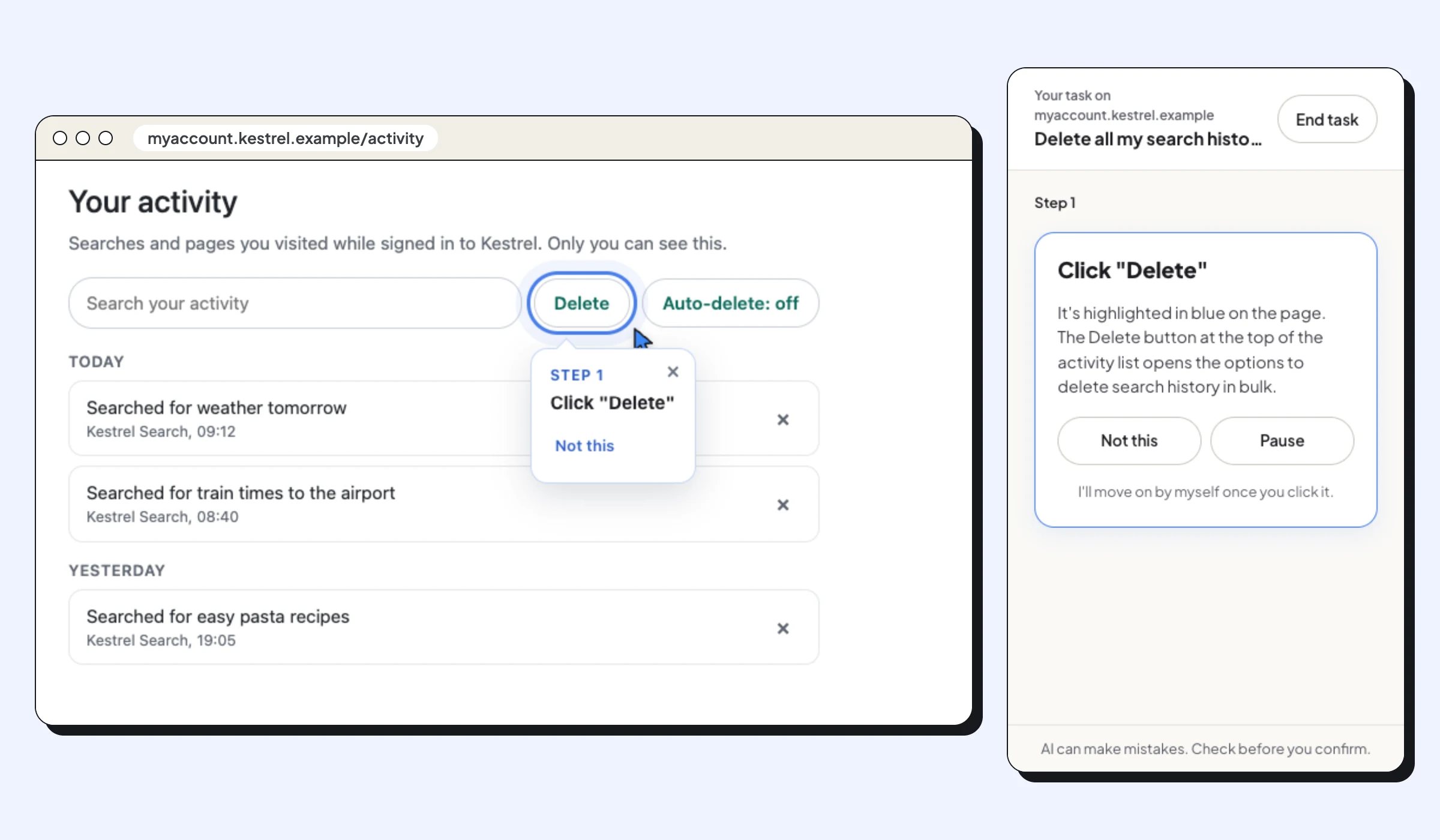
My Activity is an ordinary website, so this is a task where Clickable can guide you on the real page: type what you want to do in the panel, and Clicky highlights the next button with a blue ring.
What you need
- A computer with Chrome (or another browser)
- Your Google Account email and password
Steps
Open your search history
Go to myactivity.google.com/product/search and sign in to your Google Account if you're asked to. You see your searches, newest first.
Click Delete
Click Delete (or the small arrow next to it) above the list. Choose Delete all time to remove everything, or Delete custom range to choose the dates.
Confirm
If Google asks you to confirm, click Next, then Delete. Once your search history is deleted, it can't be brought back.
Optional: stop Google saving new searches
On the same page, under Saving history, choose Auto-delete to remove searches older than 3, 18 or 36 months, or Turn off to stop saving them.
Official website: Google My Activity