Google ChromeTime needed: 1 minute
How do I delete cookies for just one website in Chrome?
Updated
Go to chrome://settings/content/all, type the website's name in Filter sites on page, click its bin icon and confirm with Delete.
When a single website misbehaves, you don’t have to clear everything. Chrome keeps a list of every site that stores data on your computer, and you can delete one site’s cookies and data from it. These steps are for Chrome on a computer.
You’ll be signed out of that website afterwards, so have its password ready. Your other websites, your history and your saved passwords stay as they were.
What you need
- Google Chrome on a computer
- The name of the website, for example wikipedia.org
- Your password for that website, because you'll be signed out of it
Steps
Open the list of all sites
Type chrome://settings/content/all in the address bar and press Enter. You can also get there from Settings, then Privacy and security, then Site settings, then View permissions and data stored across sites.
Find the website
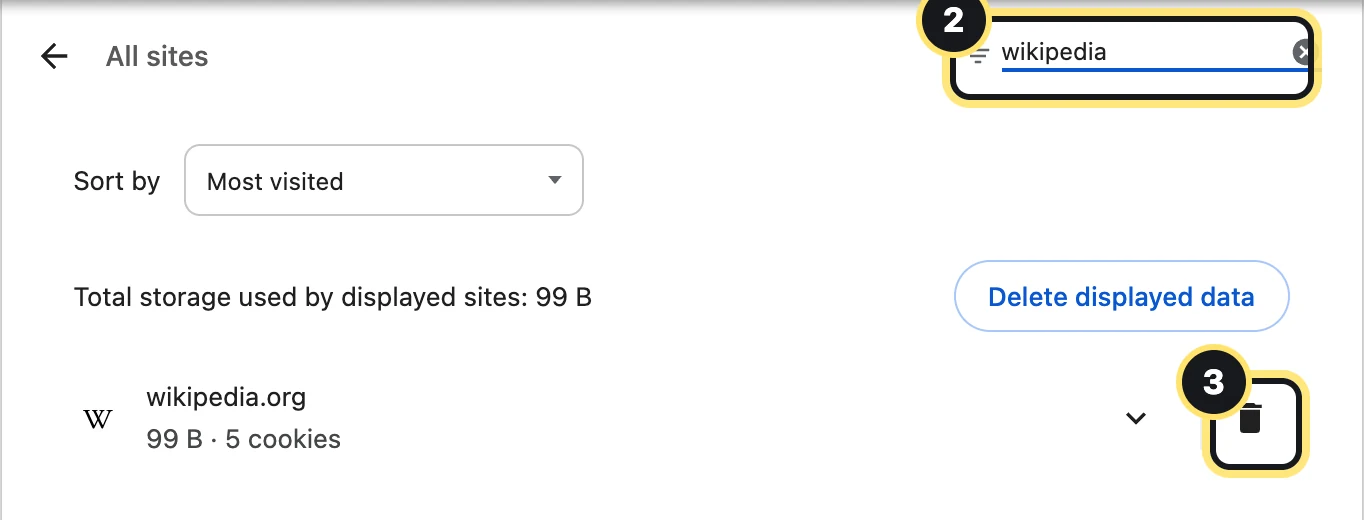
Click Filter sites on page at the top right and type part of the website's name. The list shows only the matching sites, with how much data and how many cookies each one keeps.
Click the bin icon
Click the bin icon at the right of the website's row. If the site uses several addresses (for example a separate sign-in address), delete each one that belongs to it.
Confirm with Delete
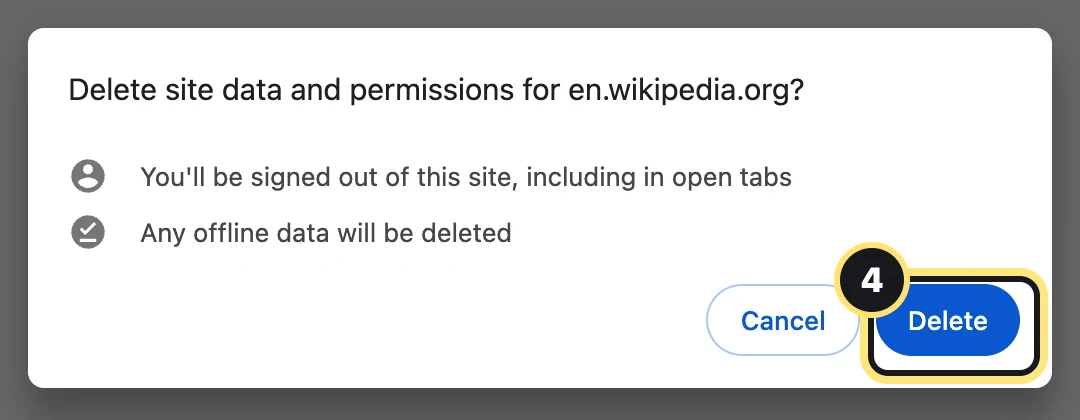
Chrome asks if you want to delete the site's data and permissions. Click Delete. You're signed out of that website, including in tabs that are already open. Everything else stays as it was.
Official website: Google Chrome