AmazonTime needed: 3 minutes
How do I cancel Amazon Prime?
Updated
Go to Account & Lists, then Prime membership, open the membership menu and choose End membership. Keep choosing to end until Amazon confirms it.
Amazon Prime renews automatically, and the way out takes a few screens, with offers to pause or stay along the way. These steps are for Amazon in a browser on a computer. Wording differs between Amazon’s country sites, so read each button before you click.
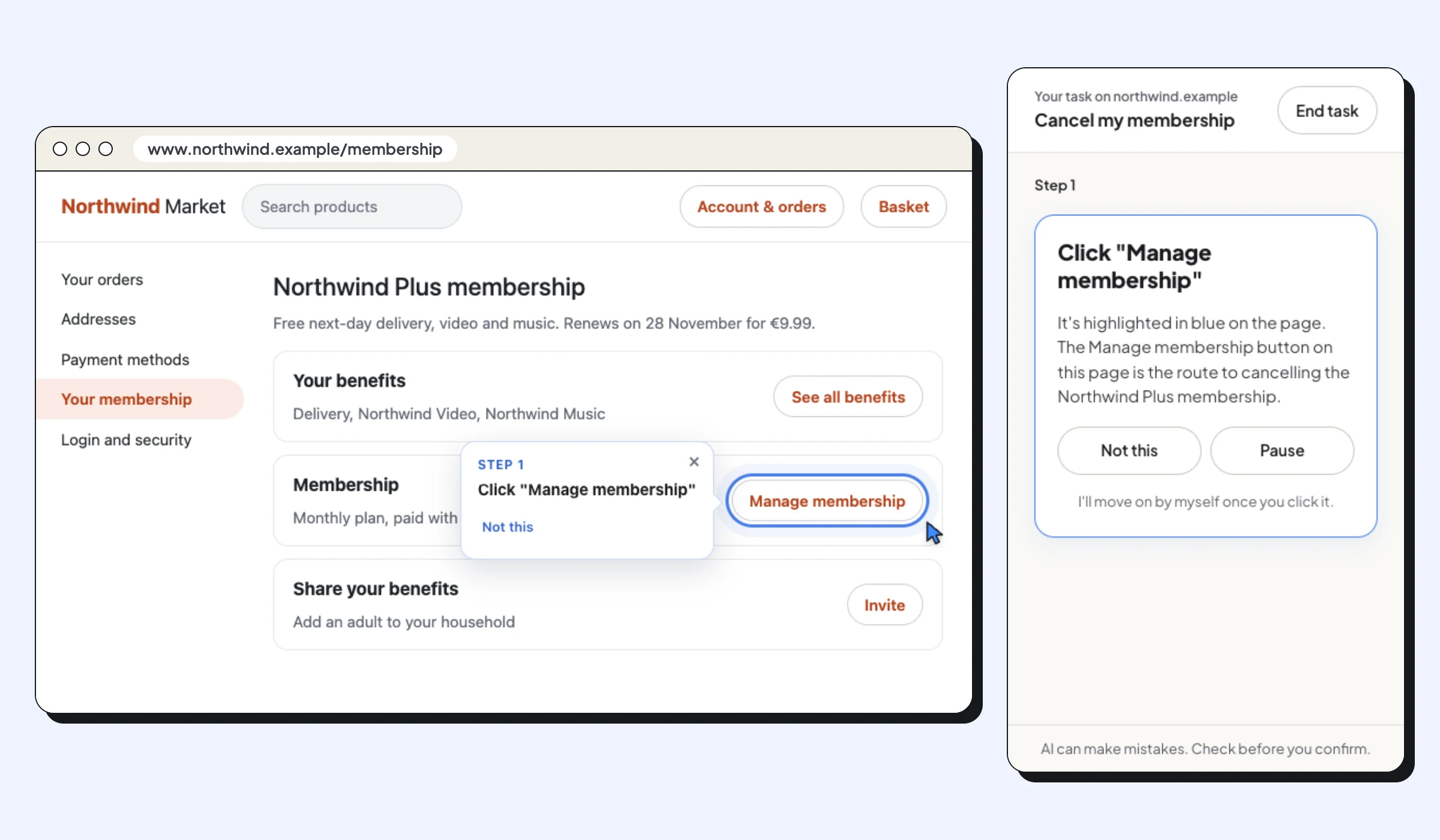
If you’d like help on the real page, open Amazon, type “cancel my Prime membership” in Clickable, and Clicky highlights each button, including the right one among the offers.
What you need
- Your Amazon account, signed in, in Chrome on a computer
Steps
Open your Prime membership
On Amazon, point at Account & Lists at the top right and choose Prime membership (on some Amazon sites it's under Your Account, then Prime).
Open the membership menu
On the Prime page, open the menu for managing your membership. Its exact name changes between countries, for example Manage membership or Update, cancel and more.
Choose End membership
Click End membership (it may say End membership and benefits, or Cancel membership).
Skip the offers
Amazon may offer to pause your membership, remind you before it renews, or switch plans. If you want to cancel, pick the option to continue cancelling each time.
Check the confirmation
When it's done, Amazon shows the date your Prime benefits end. Your card isn't charged for Prime after that date.
Official website: Amazon