SAP ConcurTime needed: 10 minutes
How do I submit an expense report in SAP Concur?
Updated
Create a new report, fill in its name and purpose, add each expense with its receipt, then click Submit Report. Your company's approvers take it from there.
An expense report collects what you paid for work, with the receipts, and sends it to your company for approval and repayment. In SAP Concur you create the report, add each expense with its receipt, and submit it. These steps are for Concur in a browser on a computer. Your company decides the required fields and the approvers, so your screens may differ.
What you need
- Your company's SAP Concur, open in Chrome on a computer
- Your receipts, as photos or PDFs
- The business purpose, and a project or cost centre if your company uses them
Steps
Create a new report
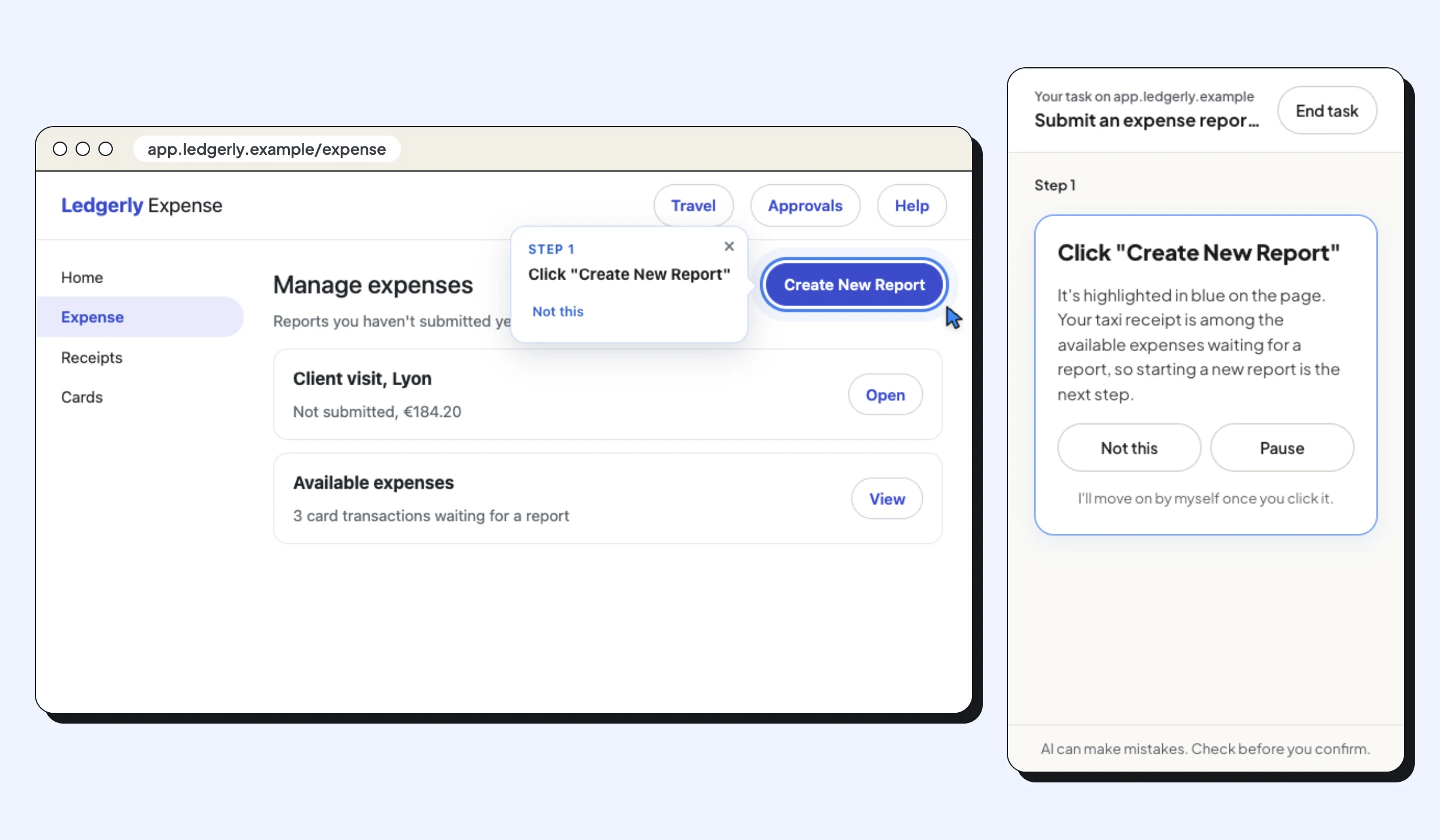
From the Concur home page, open Expense and click Create New Report (on some screens: Start a Report).
Fill in the report header
Give the report a name you'll recognise later, such as "Client visit, Lyon, March", and fill in the business purpose and any required fields, then click Create Report. Required fields are marked, and they differ between companies.
Add your expenses
Click Add Expense. Pick card transactions that are already waiting, or create a new expense: choose the expense type (for example Taxi), then enter the date, amount and vendor.
Attach the receipts
For each expense, attach the receipt by uploading the photo or PDF, or choose one from your Available Receipts. Concur flags expenses that still need a receipt.
Submit the report
When every expense is complete, click Submit Report and accept the statement that appears. The report goes to your approver; you can follow its status on the Expense page.