Google Admin console (Chrome)Time needed: 15 minutes, plus Chrome's policy update
How do I roll out Clickable to my whole team?
Updated
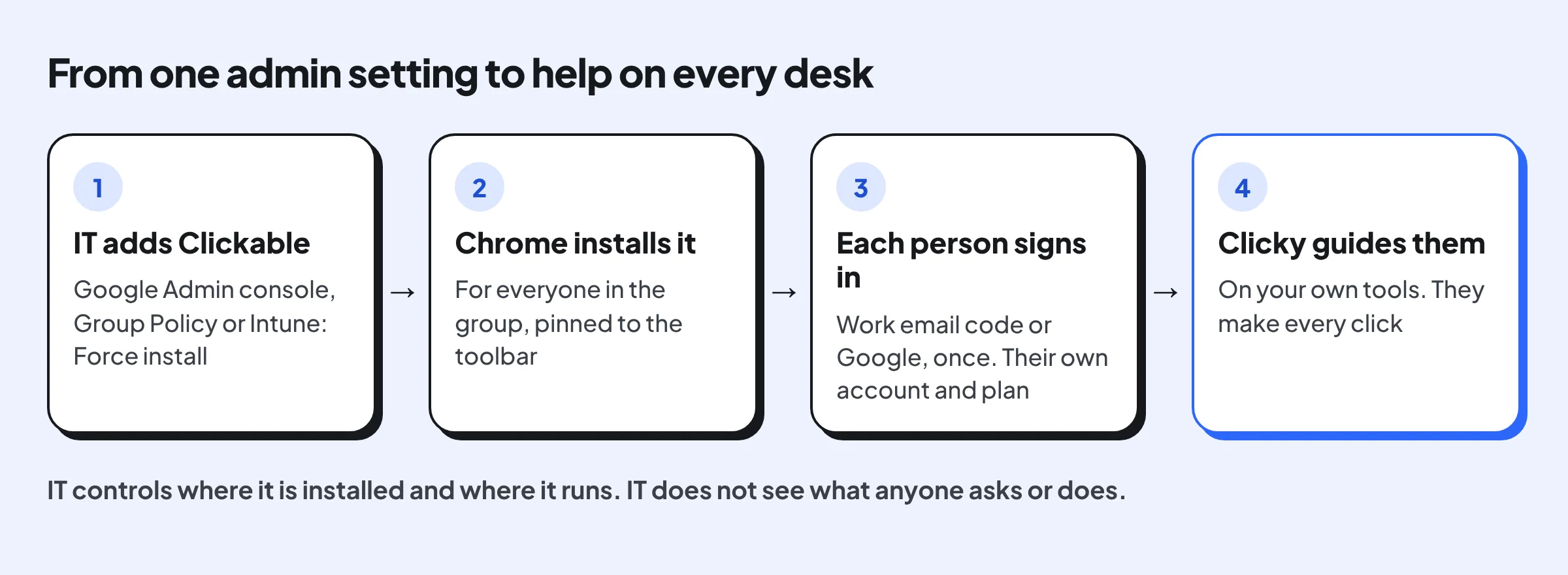
In the Google Admin console, add Clickable by its ID and set it to Force install. On Windows or Mac, use Chrome's ExtensionInstallForcelist policy.
Your IT team can install Clickable on every employee’s Chrome at once, the same way as any Chrome Web Store extension, with no work on Clickable’s side. Try it with a small group first. Each person then signs in once with their own account, and Clicky helps them on your company’s own tools. They make every click.
What IT can and can’t control
| IT can | IT can’t, today |
|---|---|
| Install Clickable for a group or the whole company, and pin it to the toolbar | Buy for the whole team in one place: each person has their own plan (Free, 3 tasks a month, or Plus) |
| Keep it off chosen websites with Chrome’s own policies | Preset how people sign in, or use single sign-on |
| Remove it from everyone at any time | See what anyone asked or did: there is no admin dashboard |
Team plans, central billing and admin settings are on the Enterprise roadmap. For now they start with a pilot.
Permissions and data
- What Chrome asks for: the side panel, running on the page you’re on, storing settings on the computer, Google sign-in (from version 0.1.1), and access to all websites. Chrome shows the last one as “read and change your data on all websites”. Clickable needs it so Clicky can help on any site you open, but it only reads a page when someone asks for help.
- What it reads then: the page’s address and title, up to 15 headings, the buttons, links and labels and their state, and a visible-text excerpt of at most 1,500 characters.
- What it never sends: what people type, passwords, the content of rich-text and code editors, and sign-in pages such as Google and Microsoft, where it pauses.
- Accounts: each person signs in with a work email code or Google. Signing in also accepts the terms.
- Where it goes: the details, providers and retention periods are in the privacy policy.
What you need
- Admin access to how your company manages Chrome: the Google Admin console (Chrome Enterprise Core is free), or Group Policy, Microsoft Intune or a Mac management tool
- Clickable's extension ID: bnipbfbddabdfhelgkdllagcmlgkilof
- A test group of a few people to try it first
Steps
Pick a test group
Start with one team or organisational unit, not the whole company. In the Google Admin console that's an organisational unit or a group; in Group Policy or Intune, a security group.
Open Apps & extensions in the Google Admin console
Go to admin.google.com, then Devices, Chrome, Apps & extensions, and Users & browsers. Select the test group on the left.
Add Clickable from the Chrome Web Store
Click the plus button, choose Add from Chrome Web Store, and search for the ID bnipbfbddabdfhelgkdllagcmlgkilof (or paste the store link). Select Clickable.
Set it to Force install and pin it
Under Installation policy, choose Force install + pin to browser toolbar, then Save. Chrome installs Clickable for everyone in the group the next time it updates its policies, usually within a few hours.
Not using the Google Admin console?
On Windows, add the same ID to Chrome's ExtensionInstallForcelist policy with Group Policy or Intune, as bnipbfbddabdfhelgkdllagcmlgkilof;https://clients2.google.com/service/update2/crx. On a Mac, set the same policy in a configuration profile.
Tell your team what happens next
Each person opens Clickable from the toolbar and signs in with their work email (a 6-digit code) or Google. Signing in also accepts Clickable's terms. Everyone starts on the Free plan (3 tasks a month); people who need more can upgrade to Plus.
Official website: Google Admin console (Chrome)